
User Accounts & Passwords
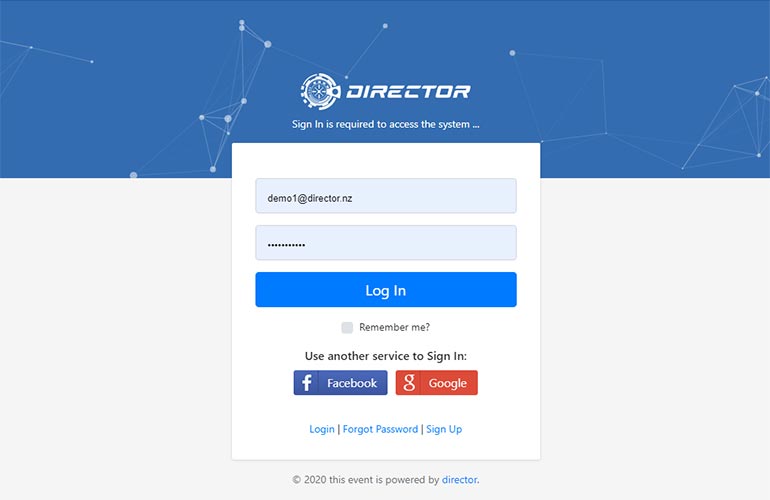
Access to the Director administration module, as well as the entrant portal (Dashboard) is controlled through a standard account setup comprising email address and password.
Director User Accounts are shared between the Admin module and Dashboard (the entrant portal). The only difference between the two is that admin accounts have had the Administrator Privilege added to them.
Creating a New User Account
The process for creating a new Administrator account is exactly the same as that for an entrant creating a new account. You go to the front page of the entrant portal (the exact URL for this will depend on your organisation setup) – this is exactly the same URL that you may have published on your event web page as “Athlete Log-In” or similar.
Below the log in buttons and fields on this page is a text hyperlink “Sign Up”. This will take you to a URL simlar to this:
You can create a user account on this screen, select a password and Director will validate that the email address has not already been used. When the account has been created, Director will send a validation token to the email chosen to ensure it is valid and that the person creating the account is the rightful owner of the email address.
Prior to any access to the system, the email address must be marked as Validated by clicking the link in the system generated email.
Once validated, the email address and password can be used to access the Dashboard entrant portal.
Creating an Administrator Account
Once a standard account has been created, you can then add the Administrator privilege to it. This will enable to the user to login through the Admin system login screen. To add the Administrator portal, you can follow the instructions described below for Email Address Validation – but as well as ensuring the Email Confirmed slider is in the On (green) position, you must also switch the Administrator slider to the On (green) position. Once you have saved this update, the user account will be able to login via the admin portal.
Forgotten Passwords & Password Reset
For users who have forgotten their password, there is a password reset link – “Forgot Password” – right below the login buttons. Following this link will prompt the user to enter their account email address. If it is valid, the system will send a password reset token by email.
What if the System Emails Are Not Received?
Unfortunately, in these days when email systems have been hardened to combat spam, it is not that uncommon for Director generated transactional email to be blocked with a false-positive spam test. Director has taken every step possible to keep these false-positives to an absolute minimum but, regrettably, this does still happen.
You entrants *may* have more success receiving Director generated transactional emails such as account confirmation, password reset and registration confirmations if they add system@director.nz to their safe-senders list.
If the reset emails are not being received, you can still work around this using the account administration functions on the Director admin system. You can access the System Users screen under the Admin menu item. This screen has two views which can be toggled using the buttons in the title bar. The initial view will only show Administrator accounts. The other view will show All Users.
Use the Search button in the heading to find the User Account you want to work on.
Email Address Validation
If the person in question did not receive their Email Address Validation token and you want to confirm on their behalf then – once you have found their user account, click the edit button, and slide the “Email Confirmed” setting to the On (green) position. When you save the record, the user account will be available to login.
Password Reset
If it was the password reset email that wasn’t received and the user needs you to set a password for them, you can do this using the Actions Menu -> Update Password. In this case, you can select a password on the user’s behalf and email it to them. Note that It is strongly recommended that you advise the user to update their password again once they have successfully logged in.